Conduit User Guide
Conduit is a Monday.com marketplace app that continuously syncs data from your boards into an external database — PostgreSQL, MySQL, MariaDB, MongoDB, or any compatible variant — without writing a single line of code.
Introduction
When a row changes on your Monday board, Conduit mirrors that change to your database within seconds. You can use the synced data to power custom reports, feed business intelligence tools, trigger backend workflows, or join Monday data with records from other systems.
What Conduit can do
- Real-time sync — board changes are pushed to your database the moment they happen, via Monday webhooks.
- Scheduled sync — a full sync runs on a cron schedule you define (every 15 minutes, hourly, daily, or a custom expression).
- Manual sync — trigger a full sync on demand from inside Monday.
- Column mapping — choose which Monday columns to sync, rename them for your schema, pick the database column type, and apply value transformations.
- Auto table creation — if the target table does not exist yet, Conduit creates it based on your column mapping.
- Deletion sync — rows are removed from your database when the corresponding Monday item is deleted.
What Conduit does not currently do
- Writing data from the database back to Monday (bidirectional sync is on the roadmap).
- Syncing file attachment columns.
Requirements
Before you begin, make sure you have:
- A Monday.com account with permission to install marketplace apps.
- An externally accessible database (PostgreSQL, MySQL, MariaDB, PlanetScale, MongoDB, or Supabase). The database must be reachable from the internet — Conduit's servers connect to it directly.
- Database credentials for a user that has
SELECT,INSERT,UPDATE,DELETE, andCREATE TABLEprivileges on the target schema or database.
Security tip: Create a dedicated Conduit database user rather than using a superuser account. Grant access only to the schema or collections that Conduit needs.
Installation
- Open the Monday.com marketplace and search for Conduit.
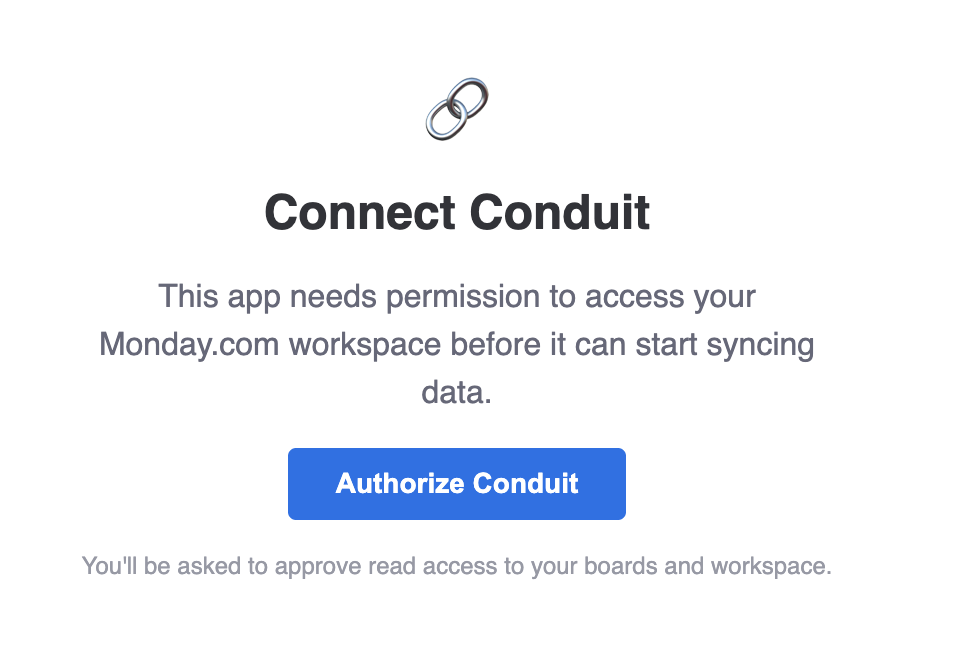
- Click Add to your account and follow the authorisation prompt.
- Once authorised, open any board and click Apps in the top-right corner, then select Conduit from the list.
- The setup wizard opens automatically the first time you use Conduit on a board.
The Setup Wizard
The first time you use Conduit on a board, a five-step setup wizard walks you through creating your first sync configuration.

Step 1 — Connect Your Database
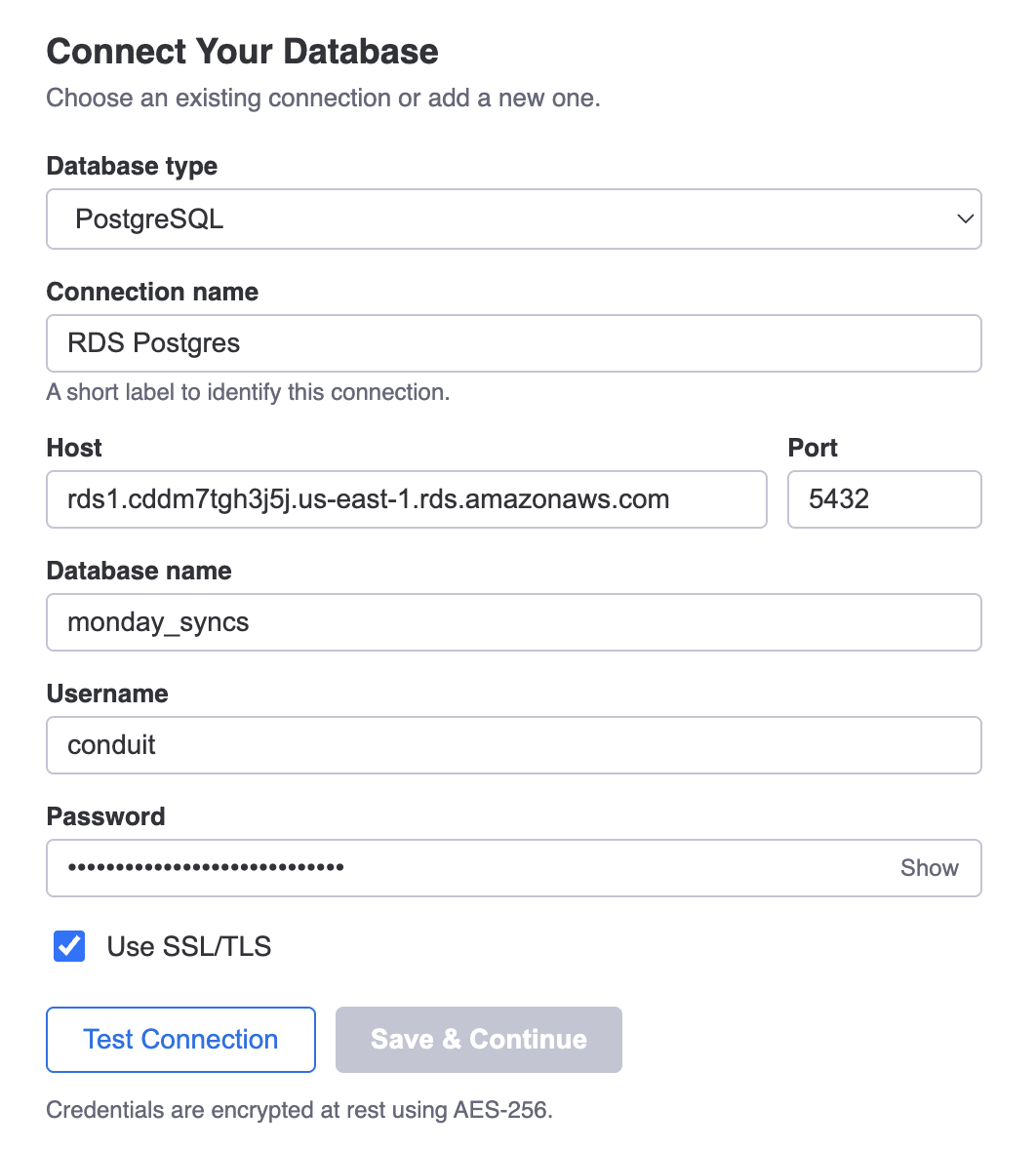
Enter the connection details for the database you want to sync into.
Supported databases
| Type | Notes |
|---|---|
| PostgreSQL | Including Supabase — use host db.<project>.supabase.co, port 5432 |
| MySQL | Version 5.7+ and 8.x |
| MariaDB | Fully compatible with the MySQL connector |
| PlanetScale | Use the connection string from the PlanetScale dashboard; SSL is required |
| MongoDB | Atlas and self-hosted; enter the connection URI |
Fields
- Connection name — a label you choose (e.g. "Production Postgres"). Used only inside Conduit.
- Type — select the database engine.
- Host — the hostname or IP address of your database server.
- Port — the port your database listens on (default: 5432 for Postgres, 3306 for MySQL, 27017 for MongoDB).
- Database — the name of the database (or for MongoDB, the default authentication database).
- Username / Password — the credentials Conduit will use to connect.
- SSL — enabled by default. Disable only if your database does not support SSL.
Testing the connection
Click Test connection before saving. Conduit attempts a real connection and reports success or failure immediately. If the test fails, double-check your host, port, and credentials, and confirm that your database's firewall allows inbound connections from Conduit's IP range.
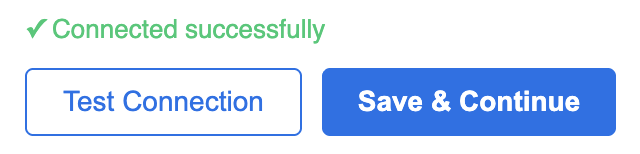
Once the test passes, click Save & continue.
Credentials are encrypted at rest. Conduit stores your database password using AES-256 encryption. It is never logged or returned in API responses.
Step 2 — Select a Board
Choose the Monday board whose items you want to sync into the database.
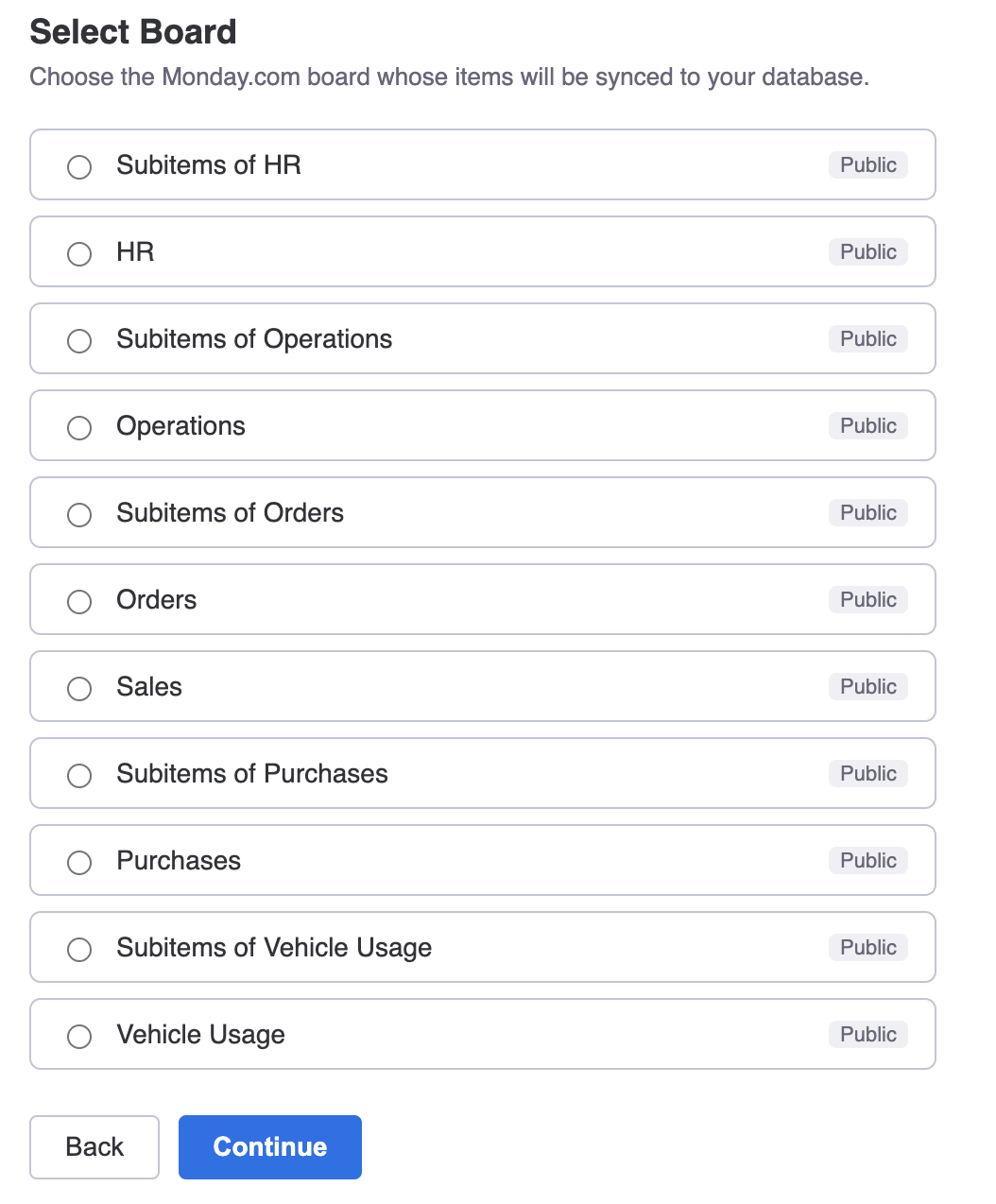
The list shows all boards your Monday account has access to. If the board you need is not visible, check that it is shared with your account in Monday.
Click a board to select it, then click Continue.
Step 3 — Map Columns
This is the most important step. You choose the target database table and control exactly how each Monday column maps to a database column.
Selecting a target table
First, choose whether to sync into an existing table or create a new one.
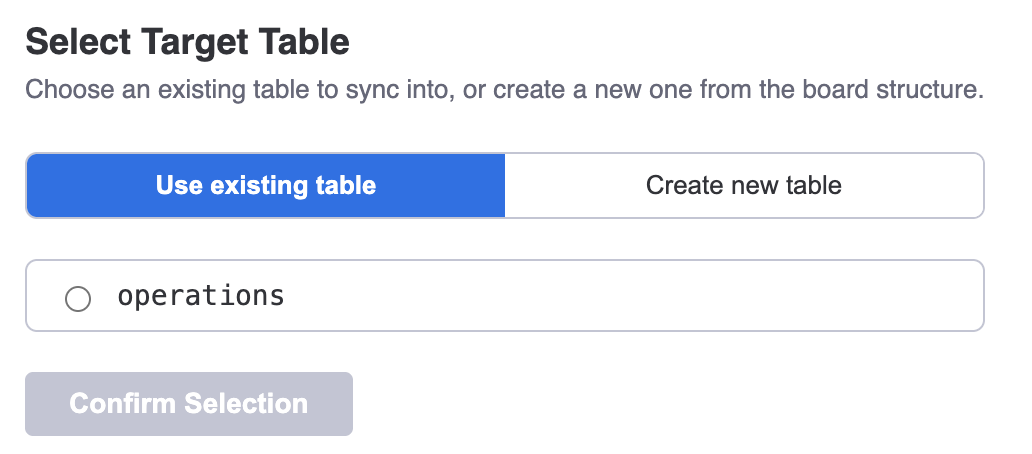
Use existing table — Conduit lists the tables it finds in the database. Select one; Conduit will read the existing column definitions and pre-fill the mapping to match. Rows are upserted by primary key, so existing data is preserved.
Create new table — type a table name (letters, digits, and underscores only; must start with a letter or underscore). Conduit creates the table automatically when you activate the sync.
Click Confirm Selection to proceed to the column mapping grid.
The column mapping grid
The grid shows one row per Monday column, plus two locked system rows at the top.
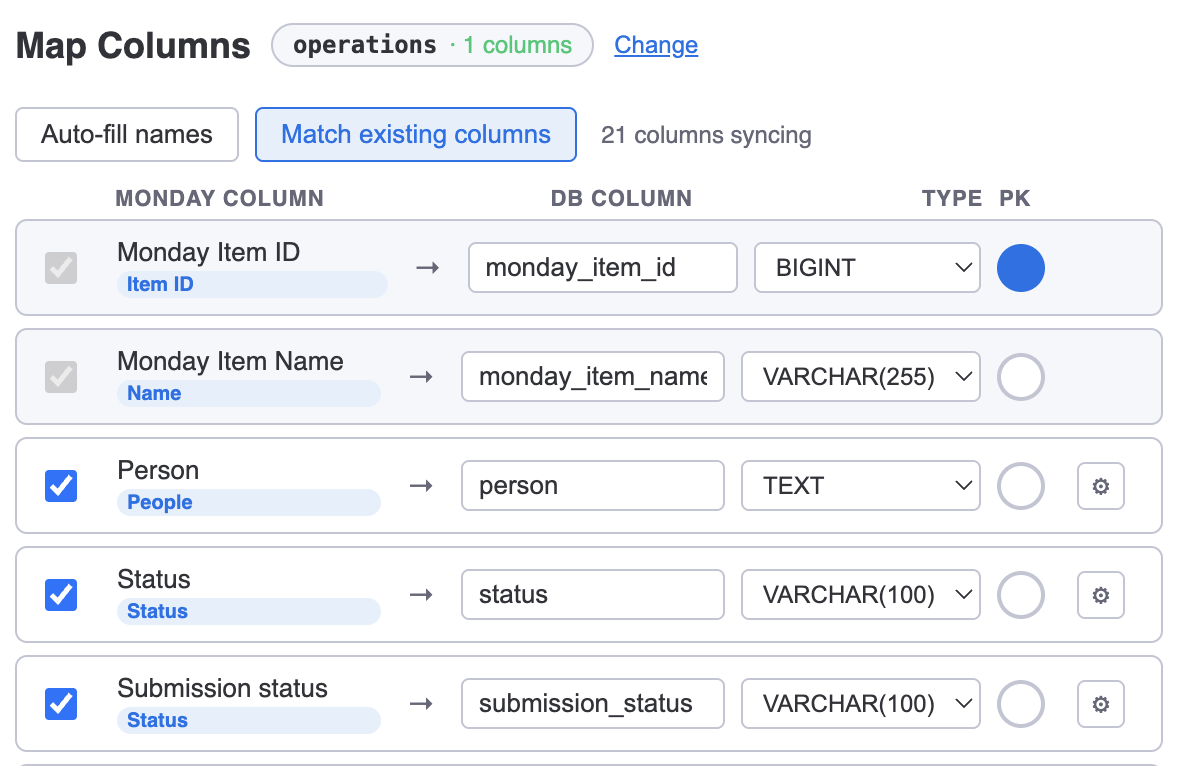
Each row contains:
| Column | Purpose |
|---|---|
| Toggle | Enable or disable syncing this column. Disabled columns are excluded from every sync. |
| Monday column | The column name from your Monday board and its type (shown as a blue badge). |
| → | Arrow indicating the direction of the mapping. |
| DB column | The name the column will have in your database. Edit this freely. |
| Type | The database column type (not shown for MongoDB — it is schemaless). |
| PK | Primary key selector — one column must be set as the primary key. |
| ⚙ | Opens the transform editor for columns that support transformations. |
System columns
The first two rows are always present and cannot be disabled:
- Monday Item ID →
monday_item_id(BIGINT) — the unique Monday item identifier, set as the primary key by default. Conduit uses this to upsert rows correctly. - Monday Item Name →
monday_item_name(VARCHAR(255)) — the item's title field.
For subitems boards, a third system row is added: Parent Item ID → monday_parent_item_id (BIGINT), so you can join the subitem table back to the parent board's table.
Enabling and disabling columns
Toggle the checkbox at the left of each row to include or exclude a column from the sync. Disabled rows are greyed out and skipped in every sync run.
DB column names
The DB column field is pre-filled with a snake_case version of the Monday column title (e.g. "Assigned Person" becomes assigned_person). You can edit it to anything that suits your schema.
Click Auto-fill names in the toolbar to reset all non-system columns back to their snake_case defaults.
If you selected an existing table, click Match existing columns to automatically align the DB column names and types to what already exists in the table (matched by name similarity).
Column types
The Type dropdown lists the database types that are compatible with each Monday column type. The first option is the recommended default. You can override it — for example, you might change a status column from VARCHAR(100) to TEXT if you expect very long labels.
| Monday type | Recommended DB type |
|---|---|
| Text | TEXT |
| Number | NUMERIC(18,4) |
| Status / Dropdown | VARCHAR(100) |
| Date | DATE |
| People | TEXT |
| Checkbox | BOOLEAN |
VARCHAR(255) |
|
| Rating | INTEGER |
| Formula | TEXT |
Setting the primary key
Exactly one column must be designated as the primary key — Conduit uses it to determine whether to insert a new row or update an existing one (upsert). The Monday Item ID system column is the primary key by default and is the correct choice in almost all cases.
To change the primary key, click the circle button (●) in the PK column of any enabled row. The button fills blue to indicate the selection, and all other rows are deselected.
Data transformations
Columns that support transformations show a ⚙ button. Click it to expand the transform editor below that row.
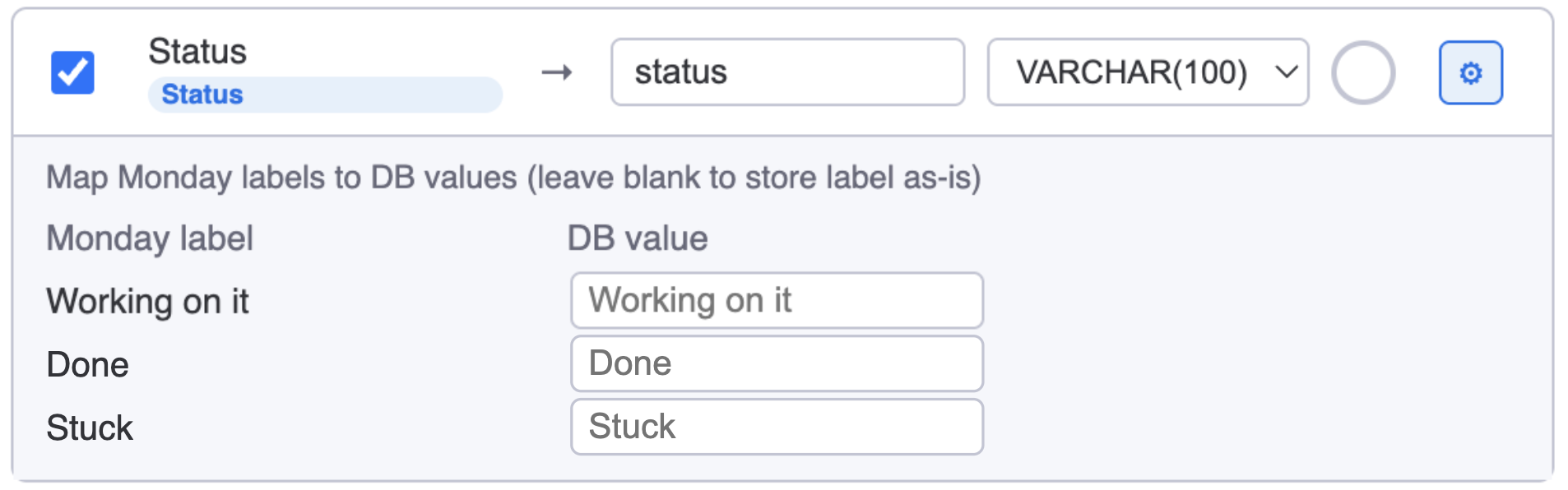
Status and Dropdown columns — value map
By default, Conduit stores the Monday label text as-is (e.g. "Working on it"). Use the value map to store a different string in the database instead (e.g. "in_progress"). Leave a field blank to keep the original label for that option.
Date columns — storage format
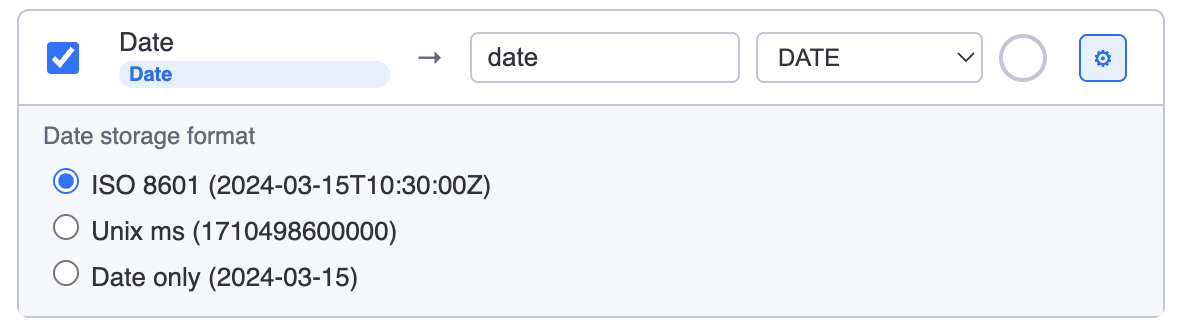
| Format | Example stored value |
|---|---|
| ISO 8601 (default) | 2024-03-15T10:30:00Z |
| Unix milliseconds | 1710498600000 |
| Date only | 2024-03-15 |
People columns — representation
| Format | What is stored |
|---|---|
| Display names (default) | "Alice Smith, Bob Jones" |
| User IDs | "12345678, 87654321" |
| Emails | "alice@example.com, bob@example.com" |
Toolbar shortcuts
- Auto-fill names — resets all user-defined DB column names to snake_case of the Monday title.
- Match existing columns — visible only when an existing table was selected. Aligns names and types to the table's current schema.
The Continue button is disabled until the mapping is valid:
- Exactly one primary key is set.
- All enabled columns have a non-empty DB column name.
- No two enabled columns share the same DB column name.
Step 4 — Configure Sync
Choose how and when data flows from Monday to your database.
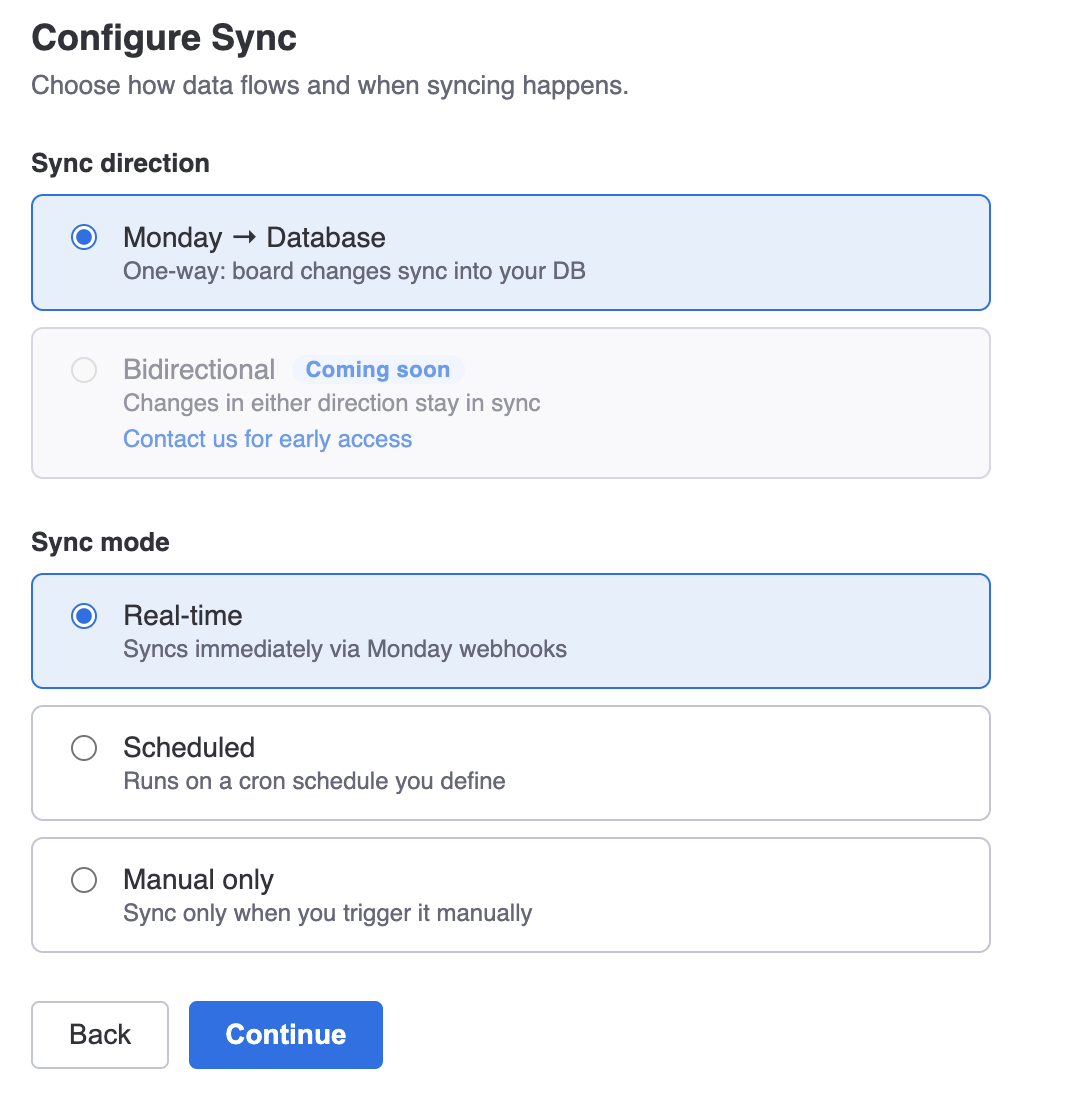
Sync direction
Currently only Monday → Database (one-way) is available. Bidirectional sync (database → Monday) is in early access — contact us if you need it.
Sync mode
| Mode | Description |
|---|---|
| Real-time | Conduit registers Monday webhooks. Every board change triggers an immediate sync for the affected item. |
| Scheduled | A full sync runs on a cron schedule you define. All items on the board are fetched and upserted on each run. |
| Manual only | No automatic syncing. You trigger a full sync manually from the board view whenever you need it. |
Sync frequency (scheduled mode)
Pick a preset or write a custom cron expression.
| Preset | Cron |
|---|---|
| Every 15 minutes | */15 * * * * |
| Every 30 minutes | */30 * * * * |
| Every hour | 0 * * * * |
| Every 6 hours | 0 */6 * * * |
| Every 12 hours | 0 */12 * * * |
| Every day | 0 0 * * * |
| Every week | 0 0 * * 0 |
Select Custom to type any valid five-field cron expression. The format is:
minute hour day-of-month month day-of-week
For example, 0 8 * * 1-5 runs at 08:00 every weekday. A green confirmation appears when the expression is valid.
Presets faster than your plan's minimum interval are shown as disabled with a badge indicating the plan that enables them.
Step 5 — Review & Activate
The final screen summarises your configuration before you commit.
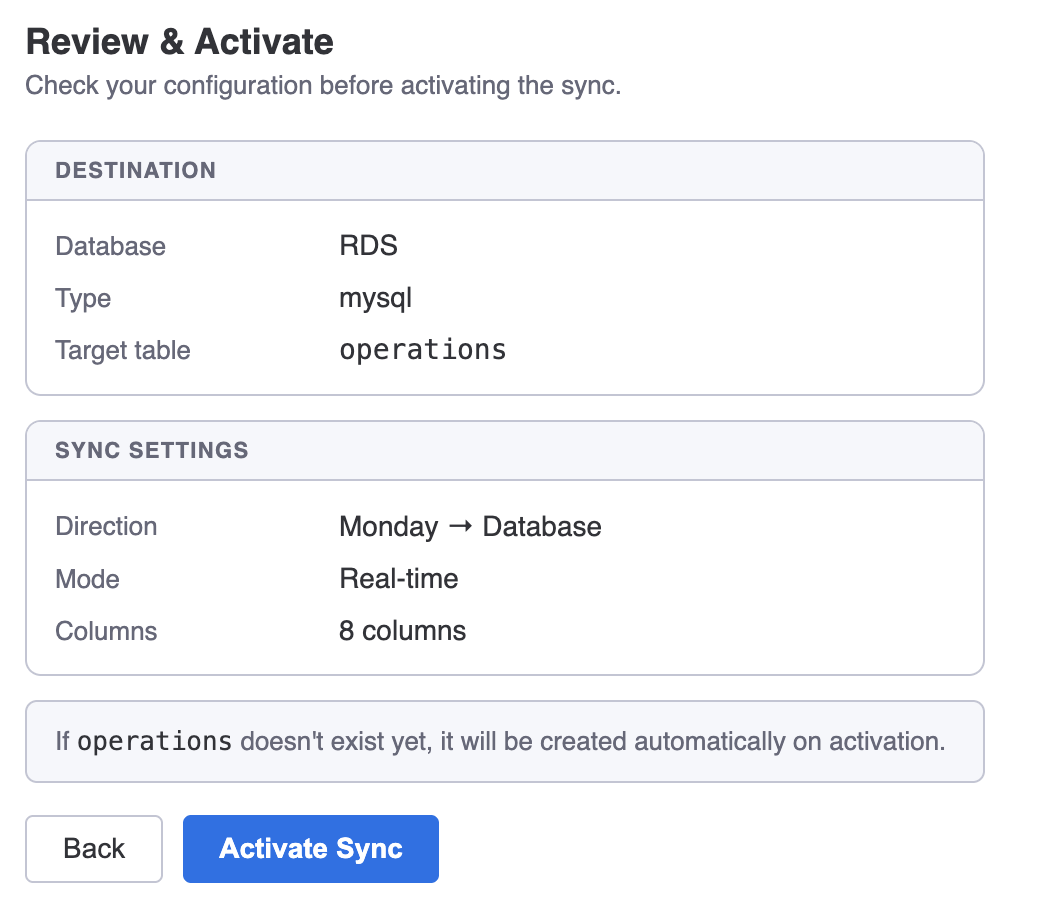
Check the following:
- Database — the connection you selected in Step 1.
- Board — the Monday board ID.
- Target table — the table name you confirmed in Step 3.
- Direction and Mode — the choices from Step 4.
- Columns mapped — the number of enabled column mappings.
For SQL databases, a note explains that Conduit will create the target table automatically if it does not already exist.
Click Activate Sync to save the configuration. Conduit will:
- Insert the sync configuration and column mappings into its own database.
- Create the target table in your database (if it does not exist).
- Register Monday webhooks (for real-time mode).
- Queue an initial full sync that runs immediately in the background.
You are returned to the board view once activation completes.
Managing Your Syncs
The board view
After activating at least one sync, the board view shows a card for each configured sync.
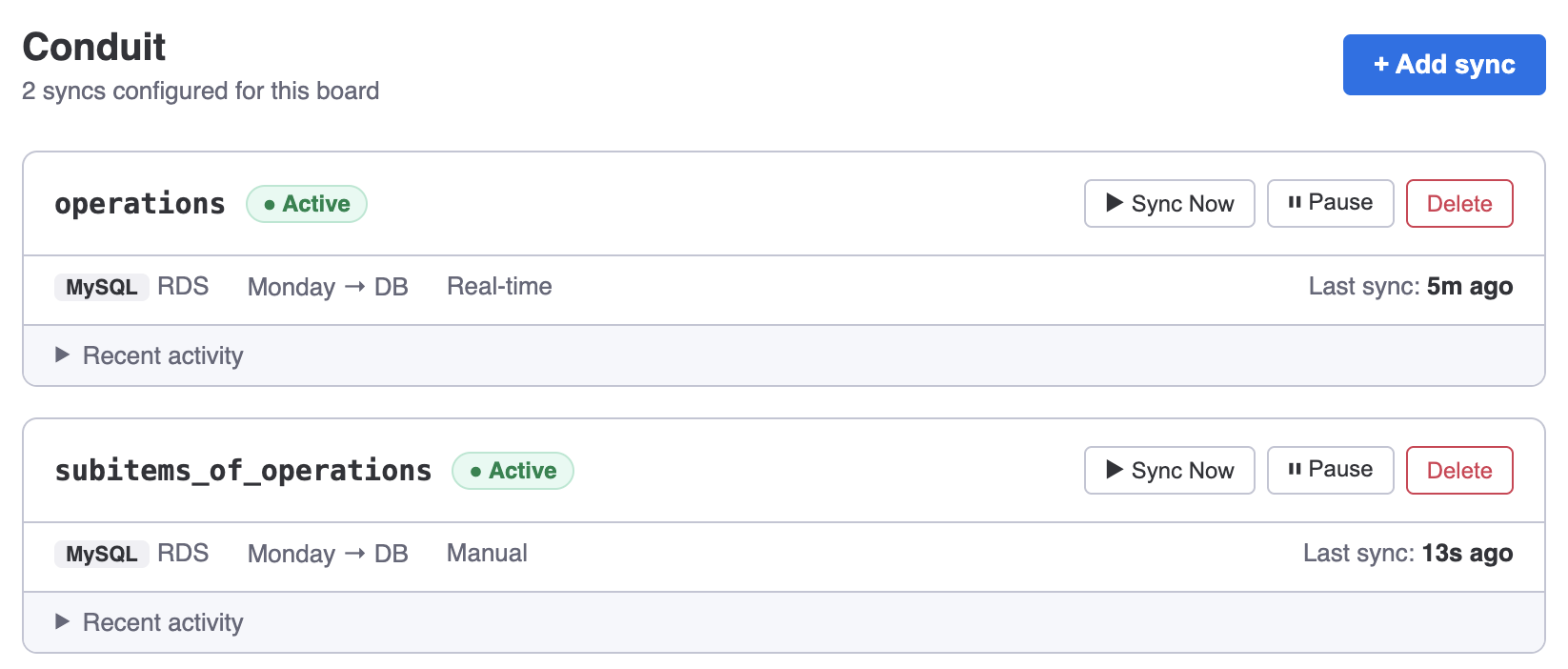
Each card shows:
- The database connection name and type icon.
- The target table name.
- The sync mode and schedule (if applicable).
- The status of the most recent sync run (timestamp, rows synced, any errors).
- Action buttons: Sync now, Pause, and Delete.
Pausing and resuming a sync
Click Pause on a sync card to temporarily stop automatic syncing. The sync configuration and column mappings are preserved. Webhook subscriptions are removed from Monday while the sync is paused.
Click Resume on a paused sync to restart automatic syncing. Webhook subscriptions are re-registered for real-time syncs, and a full sync runs immediately to catch up on any changes that occurred while paused.
Triggering a manual sync
Click Sync now on any card to queue an immediate full sync, regardless of the configured mode or schedule. This is useful after making changes to your Monday board structure or after resolving a connection error.
Manual syncs count against your plan's daily manual sync limit. If the limit is reached, the Sync now button shows an error and syncing is blocked until midnight UTC, when the counter resets.
Deleting a sync configuration
Click Delete (the trash icon) on a sync card to permanently remove the configuration. This also removes the Monday webhook subscriptions associated with that sync. The data that has already been written to your database is not deleted.
Adding a second sync
To sync a different board — or to sync the same board into a second table with a different column set — click + Add sync in the top-right corner of the board view. This launches the setup wizard again.
Sync Logs
Each sync run is recorded so you can see exactly what happened.

Click View logs on any sync card to open the log panel. Each entry shows:
| Field | Description |
|---|---|
| Started at | When the sync run began. |
| Duration | How long the run took. |
| Rows synced | The number of items upserted or deleted. |
| Trigger | What initiated the run: initial, scheduled, manual, or webhook. |
| Status | success or error. |
| Error | If the run failed, a short description of the error. |
Log retention period depends on your plan. Older logs are purged automatically.
Real-time Event Quota
Real-time syncing uses a daily event quota. Each Monday webhook event (a column value change, item creation, name edit, or item deletion) counts as one event.
If your account reaches the daily limit, a yellow warning banner appears at the top of the board view.

While the quota is active:
- Incoming webhook events are dropped — they are not queued for later.
- Scheduled and manual syncs continue to work normally.
- The counter resets at midnight UTC and the banner disappears within 24 hours.
Troubleshooting
Connection test fails
- Check host and port. Make sure the hostname resolves and the port is open. Test with a local tool like
psql,mysql, or MongoDB Compass to rule out network issues. - Check firewall rules. Your database must allow inbound TCP connections from Conduit's servers. If your cloud provider uses security groups or firewall rules, add an inbound rule for the Conduit IP range (contact contact@craftedinfra.dev for the current range).
- Check SSL mode. Some hosted databases (e.g. PlanetScale, Supabase) require SSL. Others (local dev databases) may not support it. Toggle SSL accordingly.
- Check credentials. Ensure the user exists and the password is correct. For PostgreSQL, also confirm the user has
CONNECTprivilege on the target database.
The target table is not created automatically
Conduit creates the table at activation time. If it was not created:
- Check the sync logs for an error immediately after activation.
- Confirm the database user has
CREATE TABLEprivileges in the target schema. - Verify the table name contains only letters, digits, and underscores.
Sync logs show errors after the first run
Common causes:
| Error message | Likely cause |
|---|---|
connection refused |
Database is unreachable — check that it is running and accessible. |
permission denied for table |
The database user is missing INSERT or UPDATE permissions. |
column does not exist |
A column was renamed or dropped in the database after the mapping was created. Re-open the configuration and update the mapping. |
value too long for type character varying |
Increase the column type to TEXT in your column mapping. |
duplicate key value |
A conflict on the primary key. Check that monday_item_id is truly unique. |
Real-time sync is not updating the database
- Check the sync logs. If webhook events are arriving but failing, the log will show an error.
- Check the quota banner. If the daily real-time event limit has been reached, events are dropped until midnight UTC.
- Verify webhooks are registered. Delete and re-add the sync configuration to force Conduit to re-register the Monday webhooks.
- Check that the sync is not paused. A paused sync does not process webhooks. Resume it from the board view.
The "Sync now" button shows a quota error
Your plan's daily manual sync limit has been reached. The counter resets at midnight UTC. Check your plan's allowance or upgrade to increase the limit.
The app shows "Connect Conduit" instead of my syncs
Your Monday OAuth session has expired or the app was not previously authorised. Click Connect Conduit to re-authorise. This opens a short popup where you log in with Monday and grant the required permissions. Your existing sync configurations are not affected.
Getting Help
If you run into an issue not covered here, reach out at contact@craftedinfra.dev. Include:
- The name of the board you are trying to sync.
- The database type (PostgreSQL, MySQL, etc.).
- Any error message from the sync logs or connection test.